
Creating or Adapting the contents of a Star Group
A Star Group is an ensemble of a variable, its comparaison stars plus a series of other variables that are in the same star field. Basically it is thus a list of stars, their coordinates and their magnitude in different filter bands.
The variables and the comparaison stars are downloaded from the AAVSO database via the name of a variable, or via its coordinates. All stars within a certain radius are downloaded.
If there are no AAVSO comparaison stars available for the Star Group, one can add neighborhood-stars from the UCAC4 catalog (vizier catalog "I/322A/out"), or from the Gaia catalog (vizier catalog "I/350/gaiaedr3").
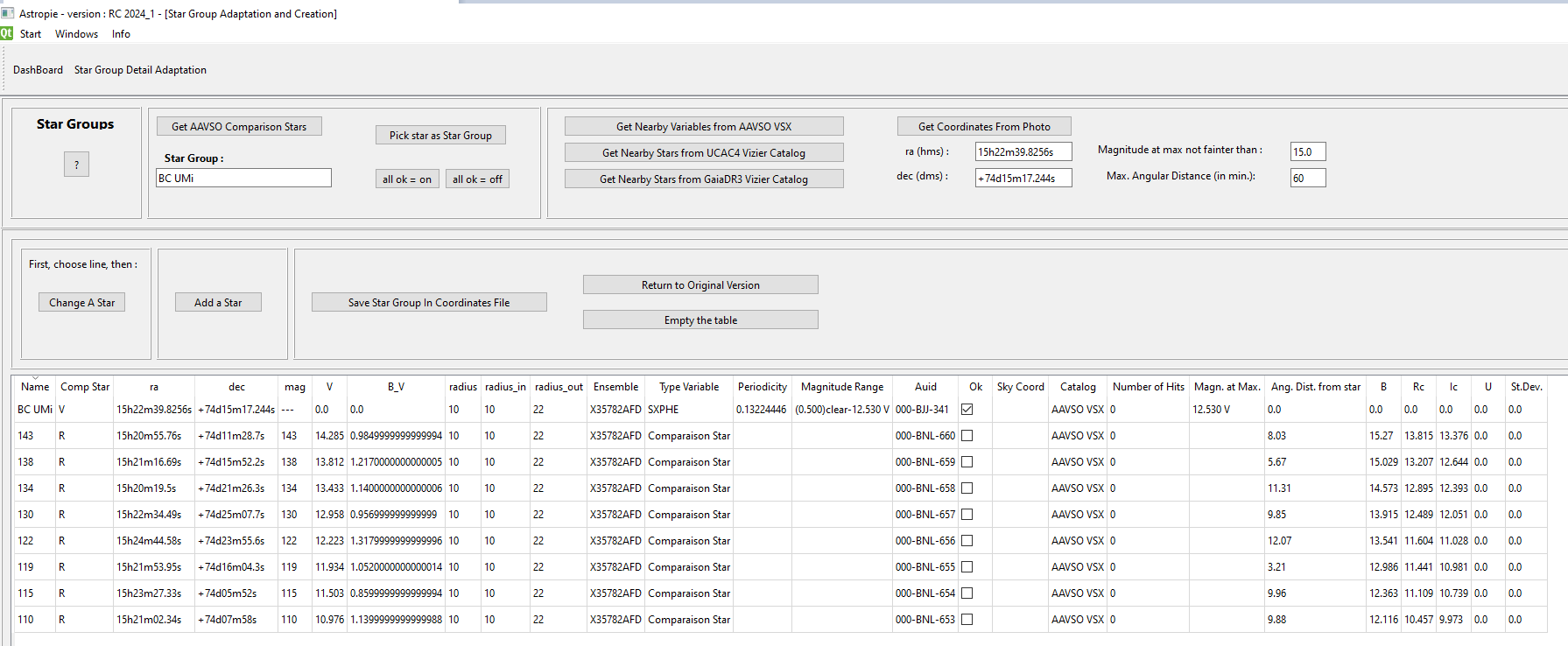
About a Star Group
Before photometry on a photo or a timeserie of photo's can be done, a Star Group must be selected.
Selecting a Star Group for photometry is done via its name on the "Choose Star Group" screen.
Also, it is possible to have Star Groups on the same coordinates, but with a (slightly) different name.
For example, one SS Cyg Star Group for when the star is faint, and one SS Cyg_outburst Star Group for when the star is in outburst.
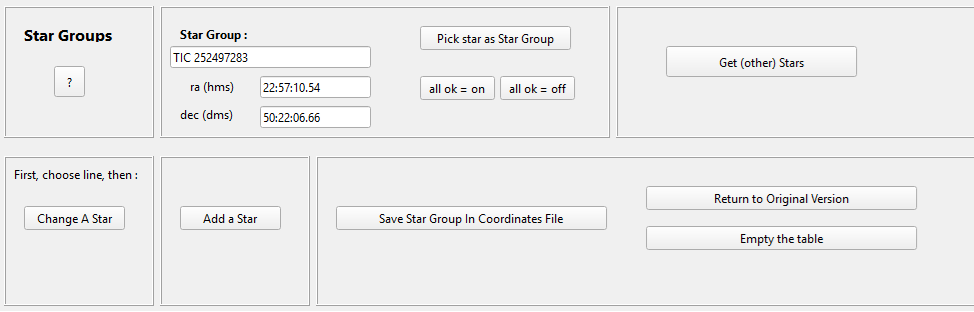
How to create a new Star Group - for a known variable at AAVSO
- If the star group is new, use the Empty the table to start from scratch
- Get (other) Stars button switches you to another screen where we do the necessary query.
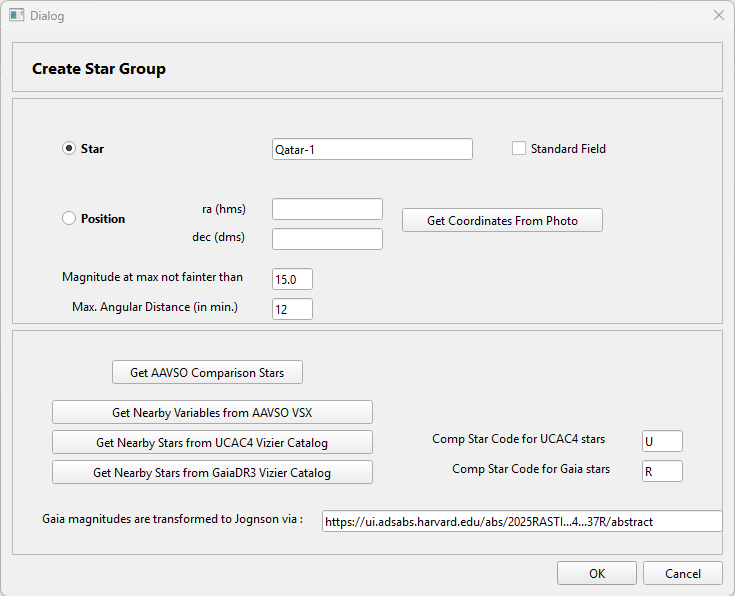
- Give the name of the star
When in doubt : check if the star exists (maybe with another name) on the website of AAVSO : https://www.aavso.org/vsx/index.php?view=search.top
Remark : For exoplanets, enter the name of the star, not the name of the planet. Thus Qatar-1, and not Qatar-1b - Or, use the button "get Coordinates from Photo" to get the coordinates of the center of an image (after platesolving it).
One can of course enter the coordinates manually too. - The number of stars can be limited by selecting the maximum brightness it needs to be selected, and the maximum distance in arc minutes from the star or coordinates
- Button : Get AAVSO Comparion stars -> will get you the star mentioned, and the comparison stars in the neighborgood
- Button : Get Nearby Variables from AAVSO VSX -> guess what will be recuperated ?
After waiting some (long) seconds, you get this response.
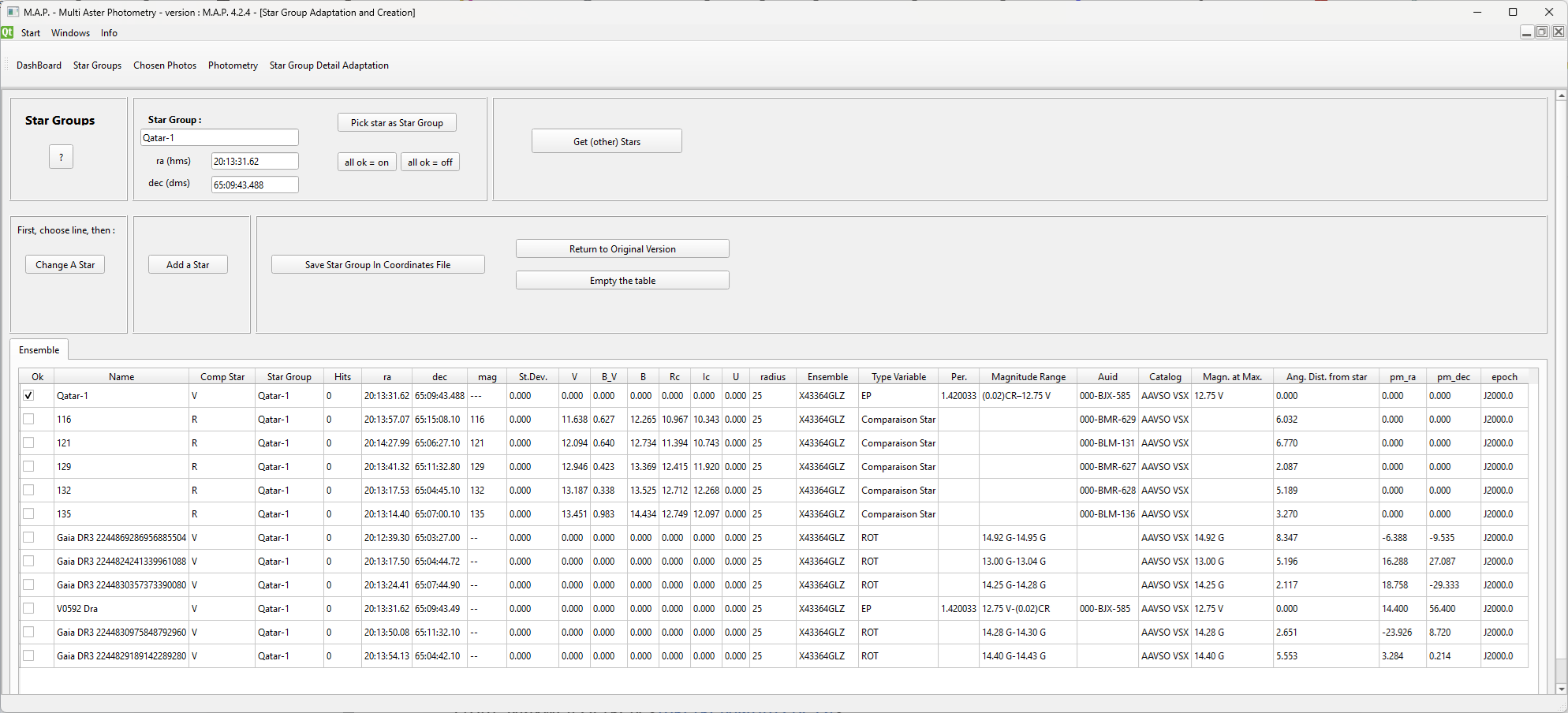
Some More Remarks :
- If you want to add more/other stars : just pass again via the Get (other) Stars button.
- If you want to start from scratch : use the "Empty the Table" button
- If you want to return to the saved version : "Return to Original Version"
- "Pick star as Star Group" : select a line, push the button and the name of the star group will change to that star. That star will then also be considered as the central star, the coordinates will be changed and the angular distance from star will be recalculated
- Star Group : the name of the file in the Coordinates Folder (see defaults screen). Eventually change to Qatar-1_alternativeFOV, or Qatar-1_second_try, etc...
- Do not to forget to save the Star Group.
If the latest photometry run was on this Star Group, it will be executed again automatically. - At least one star must have the "ok" check box at selected, and at least one star must be "R" Reference star.
What is the Meaning of the Comp Star column ?
- V : it's a variable
- R : will be used as a reference star for the photometry
- C : is the check star
- any other value : basically the same as V.
A word about the "ok" column :
When checked, the curve of the magnitudes of the star will be presented on the photometry screen. Of course that field is (un)checkable on the photometry screen to.
The button "all ok = on" selects all stars for the star group.
The button "all ok = off" unselects all stars of the star group, except the star that has the same name as the star group.
Change a Star, Add a Star
Changes can be typed directly in the table, if the star exists already, or you can click on a line and then use the button "Change a Star".
A dialog box with all the details will be shown. Do NOT forget to SAVE your changes when using this dialog box !
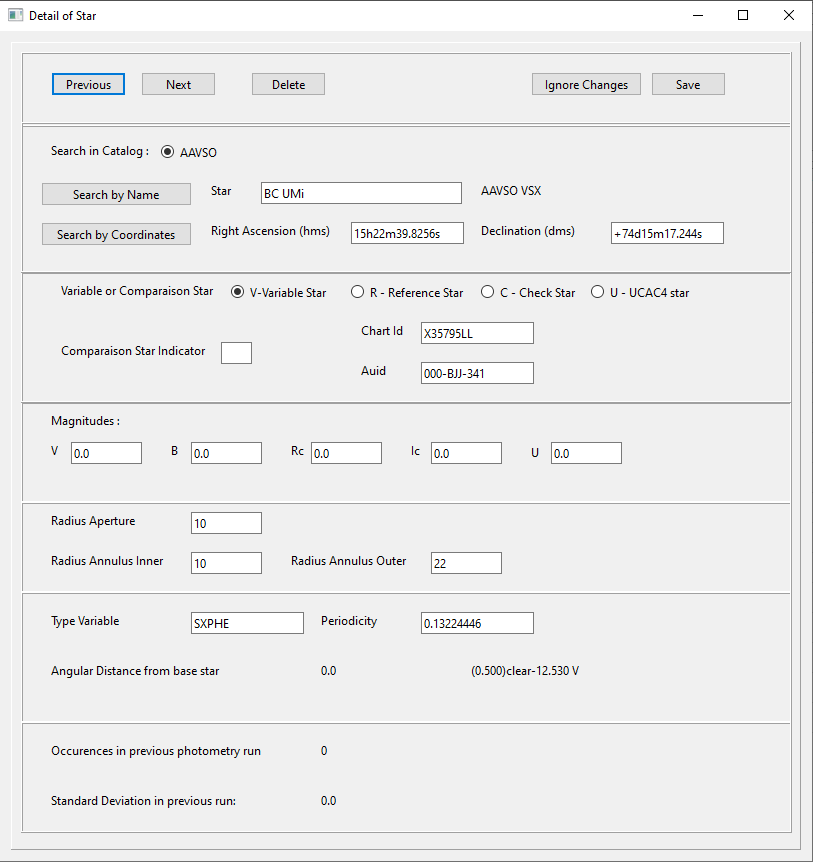
If you want to add a specific star to the star group, then that can be done also via the button "Add a Star"
Delete a Star from the Star Group
Pick a line, push the button "Change a Star", and use the "Delete" button on that dialog box.
Finetuning Position of a Star
Sometimes the proper motion of a star is so huge that the coordinates are not accurate any more.
A special screen has been developer for correcting the position with some mouse clicks : Wandering Star
Screen is accessible via the DashBoard.